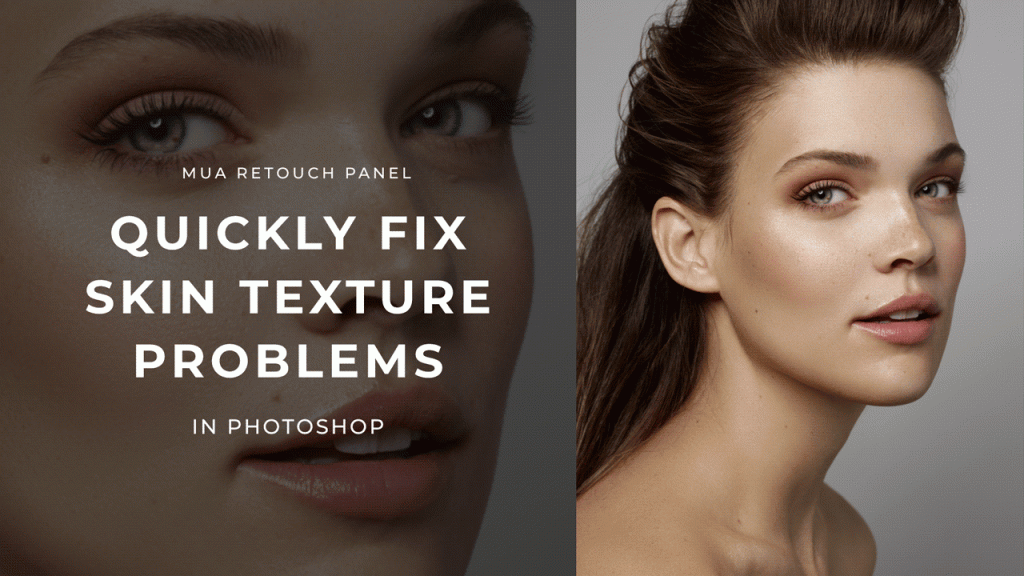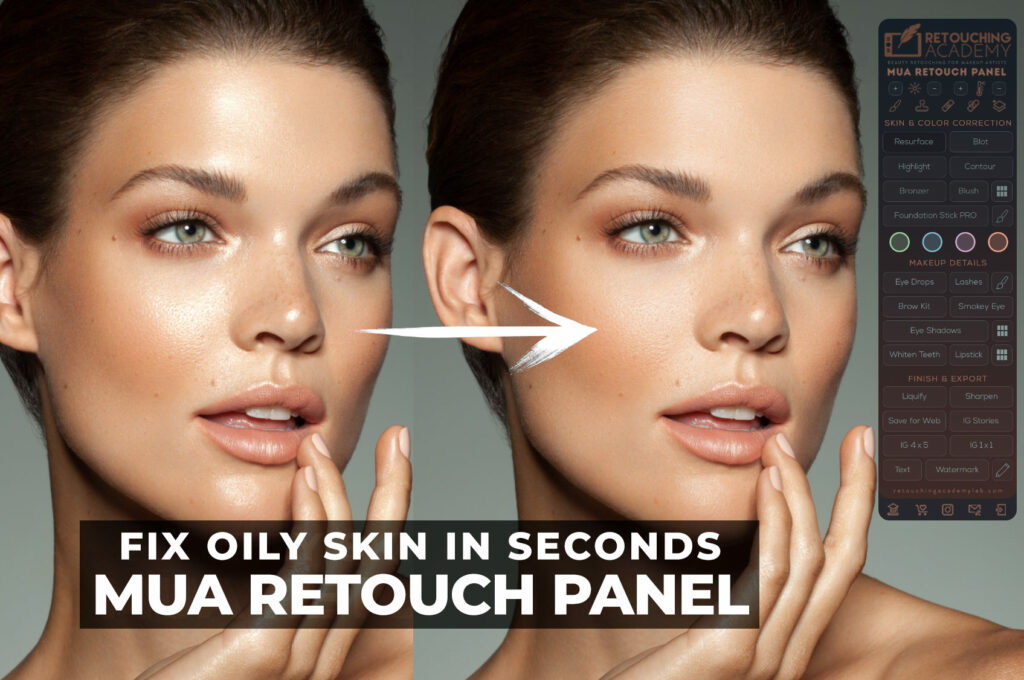
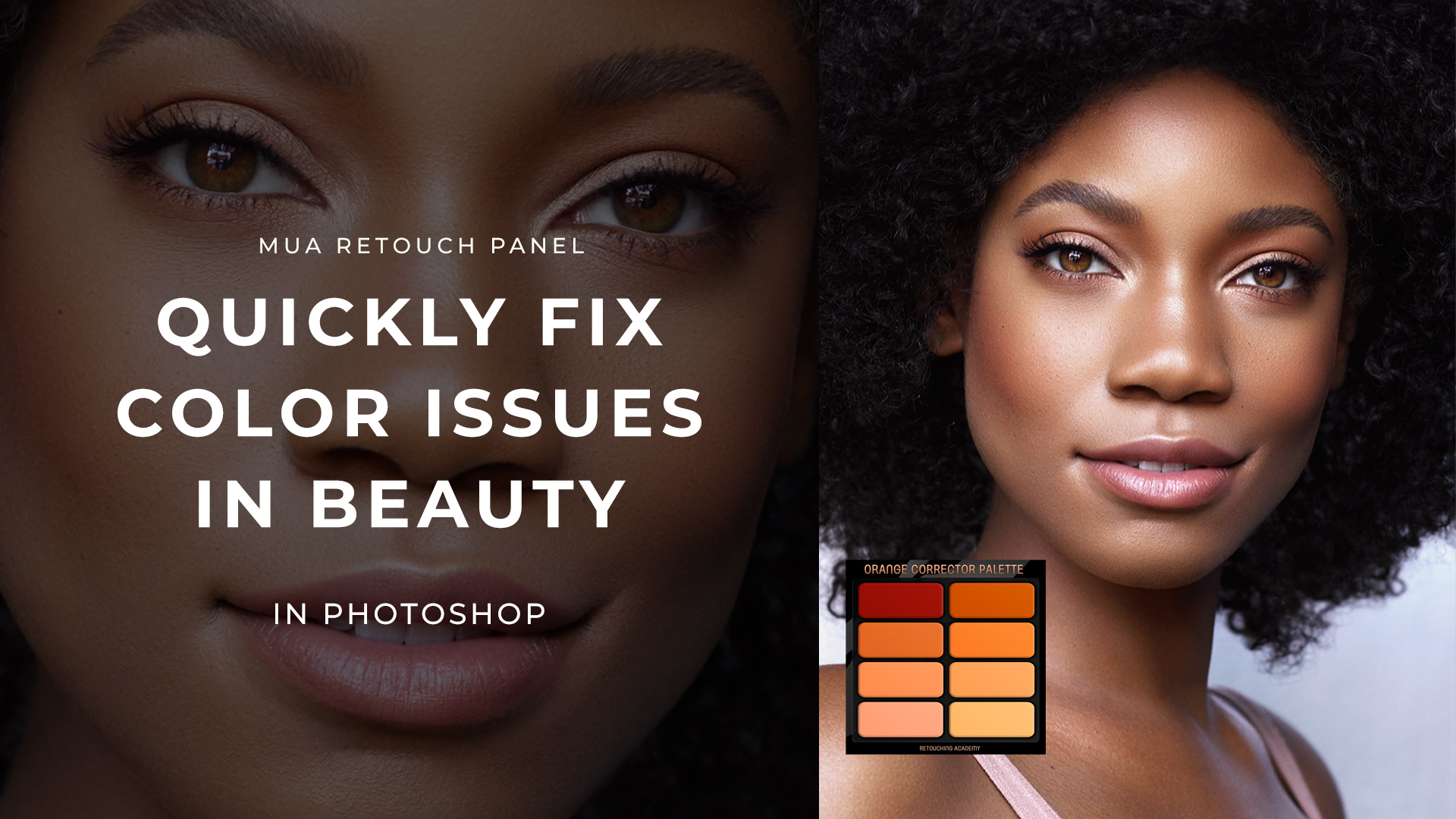
Color correction is one of the most essential aspects of beauty retouching, and the MUA Retouch Panel makes it simple, quick, and intuitive by mimicking the color correctors used in real-world makeup application.
The four Color Corrector options on the panel – Peachy Orange, Green, Purple, and Blue – are inspired by the color theory principles makeup artists rely on to perfect skin tones and fix common color issues.
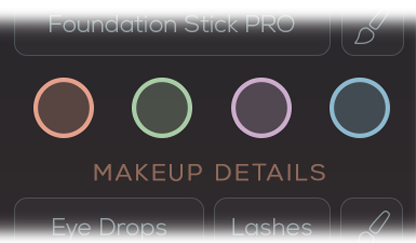
Just as makeup uses complementary colors to conceal blemishes, reduce redness, or neutralize undesired tones, these tools apply the same logic to your beauty retouching in Photoshop, allowing you to achieve natural, polished results with minimal effort and without disturbing the appearance of the true skin texture captured by the camera.
In this video, we look at the proper use of the MUA Retouch panel’s Color Correctors (Peachy Orange, Green, Purple, and Blue) that tackle common color issues quickly and with ease.
Whether you’re correcting undereye dark circles, red pathces or blemishes, neutralizing yellows, or toning down overly warm areas, these Color Correctors allow you to do it quickly and with professional-grade results.
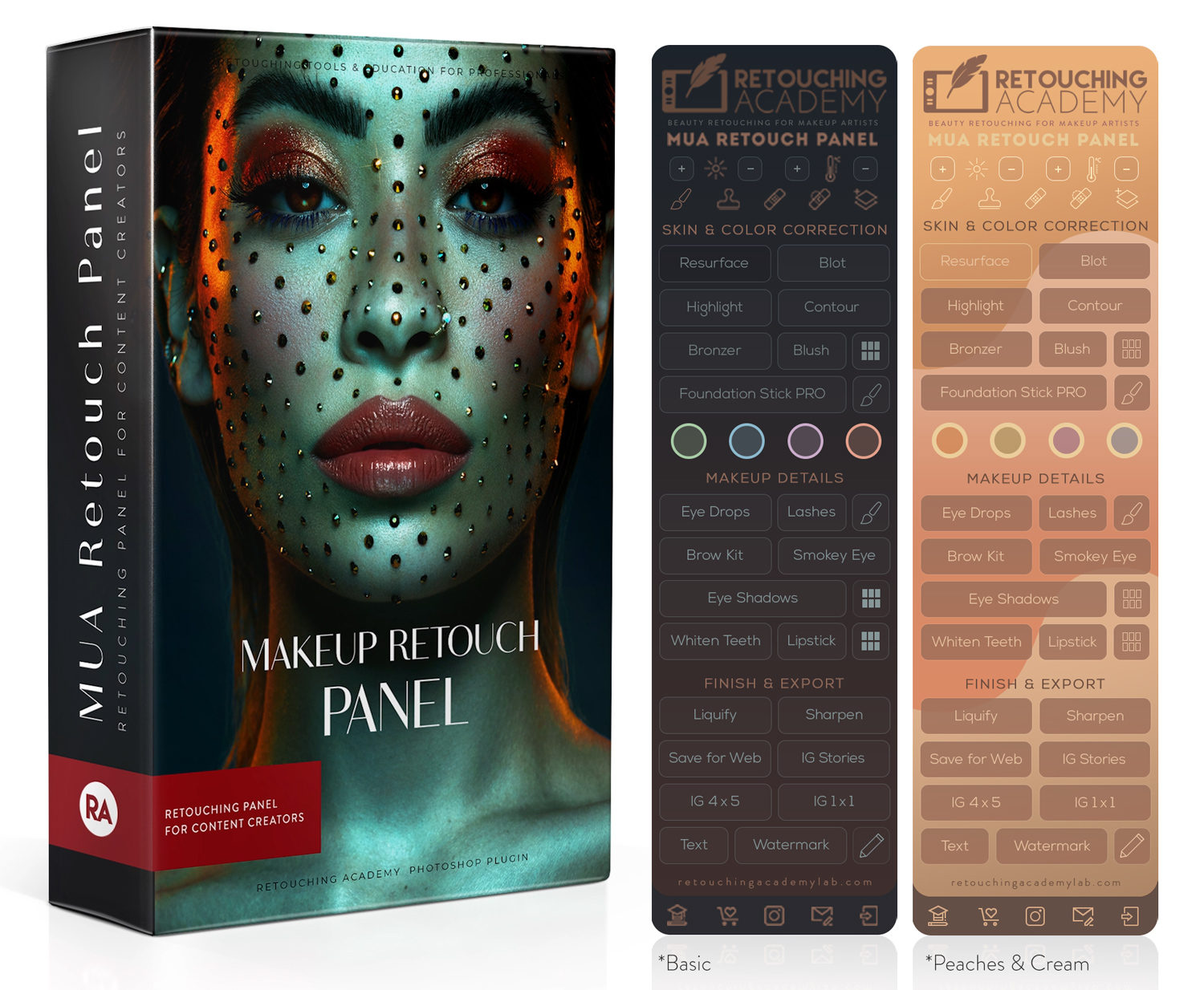
Why Photographers, Retouchers, and Other Visual Artists Love It
✅ Time-Saving Simplicity: Apply corrections in seconds with intuitive controls specifically crafted for beauty retouching.
‼️ Non-Retoucher Terminology: We’ve combined powerful pro-level retouching scripts with a conceptual approach to retouching, and terminology familiar to anyone in the beauty and makeup industry.
✅ Color Precision: Fine-tune colors using built-in digital palettes for perfect blending and color-matching for any skin tone.
✅ Full Control of Your Results: Easily control the intensity of your adjustments via layer settings and Opacity to achieve polished yet natural results.
✅ Versatile Use: From correcting blemishes to toning down spray tans or even removing unflattering colors from hair, these Correctors are great for a variety of challenges.
The MUA Retouch Panel truly bridges the gap between artistry and technology, allowing you to tackle any retouching task with speed and precision even if you are NOT a retouching professional.
Watch the full tutorial now: