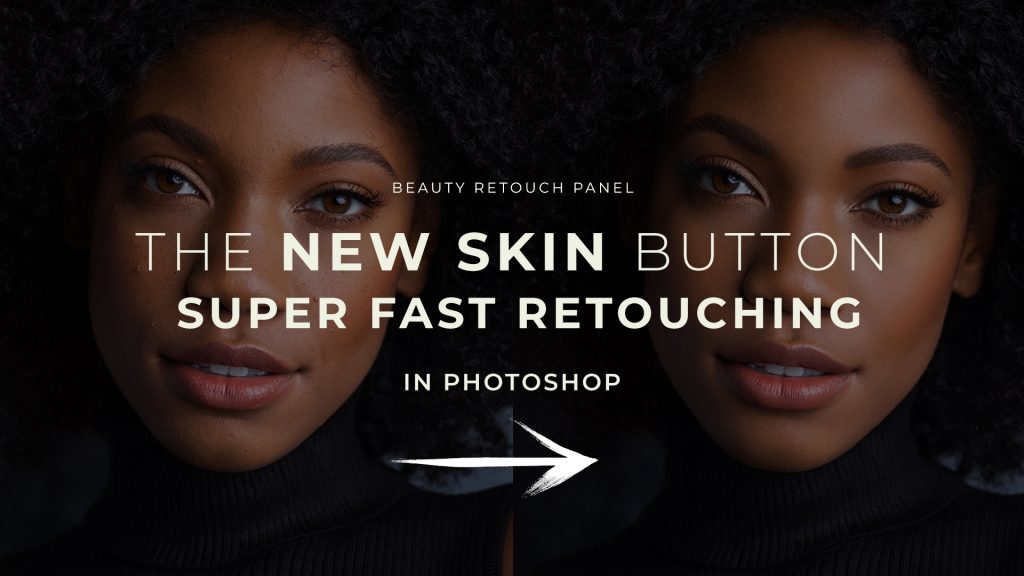
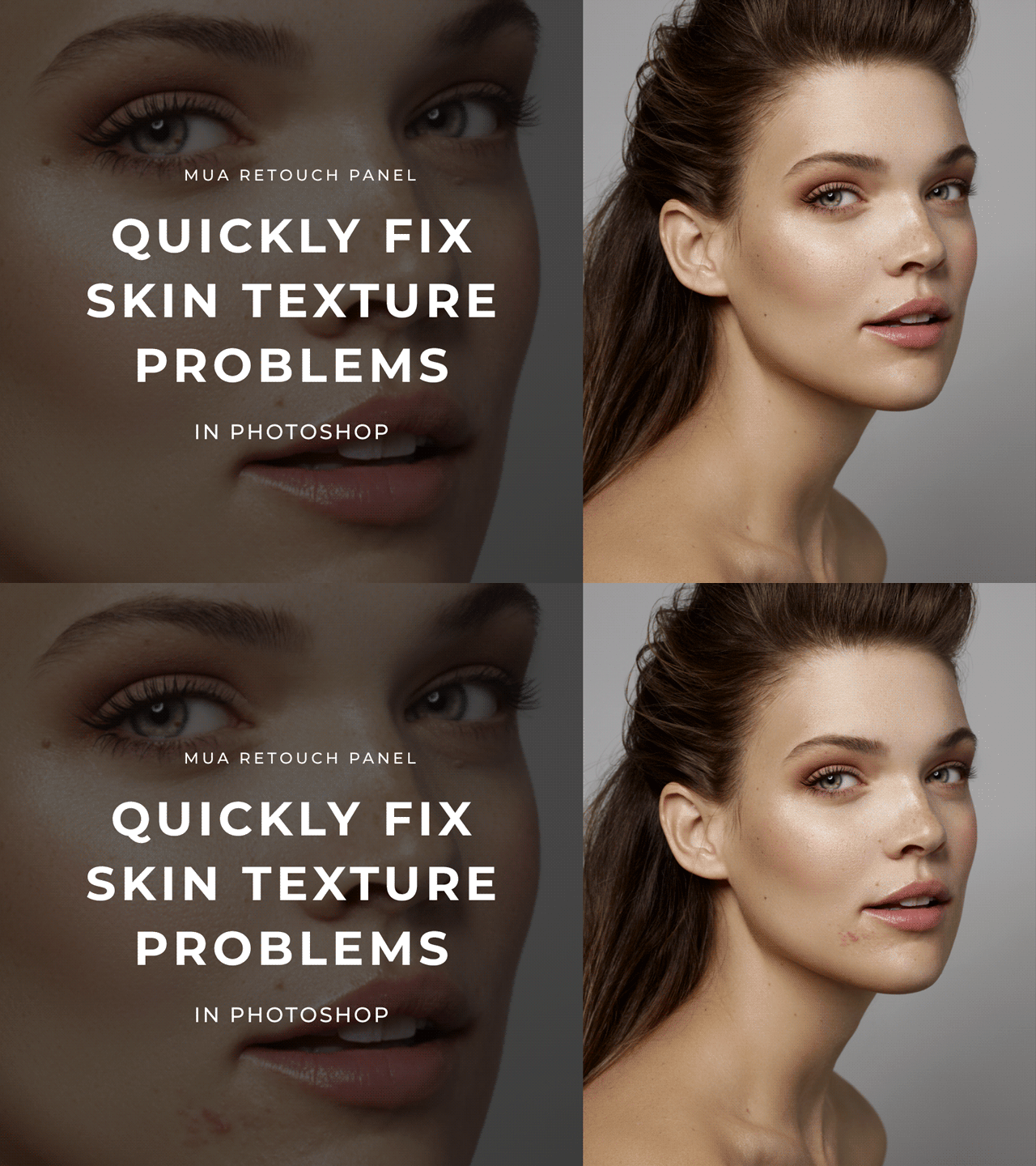
We all have shoots when models or clients show up with breakouts. Re-scheduling or re-shooting is usually not an option, so we must be able to correct some visible skin issues in post-production.
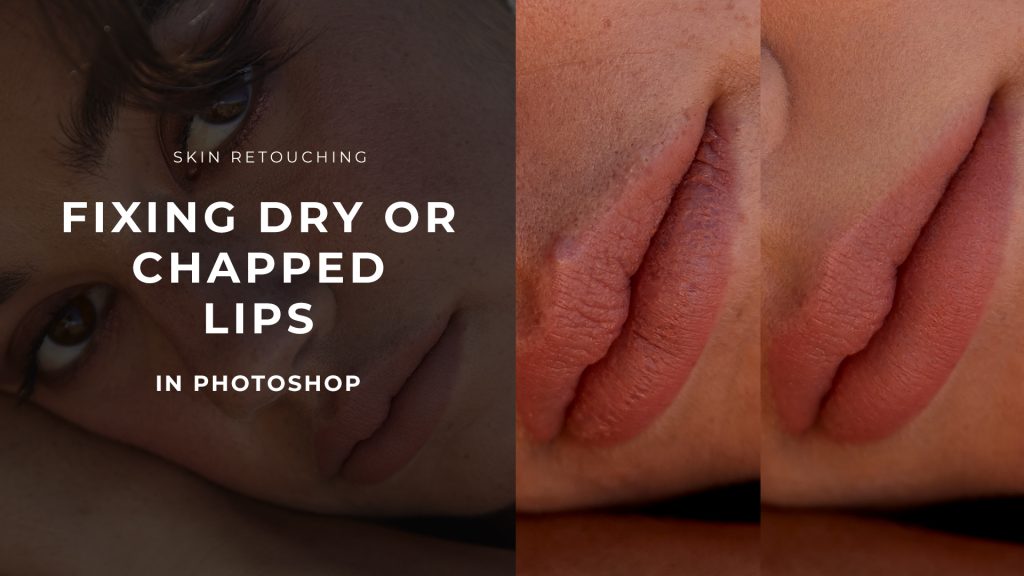
Typically, smaller blemishes and makeup mistakes can be easily fixed with the main Photoshop retouching tools, however, when you have larger areas of problematic skin texture to correct (wider breakout areas or chapped lips are common examples), you might need a more powerful approach.
Ideally, of course, if you are a photographer you will aim to select models with healthy skin complexion to work with in beauty photography. Retouchers, unfortunately, don’t have that choice.
But even for photographers that is not always possible, especially when it comes to working with clients. So, we need to know how to correct these issues in our images with retouching.
The Resurface Button on the MUA Retouch panel runs the script that helps to quickly fix complex skin issues such as dry skin patches, rashes, or larger blemishes, and remove facial and body hair.
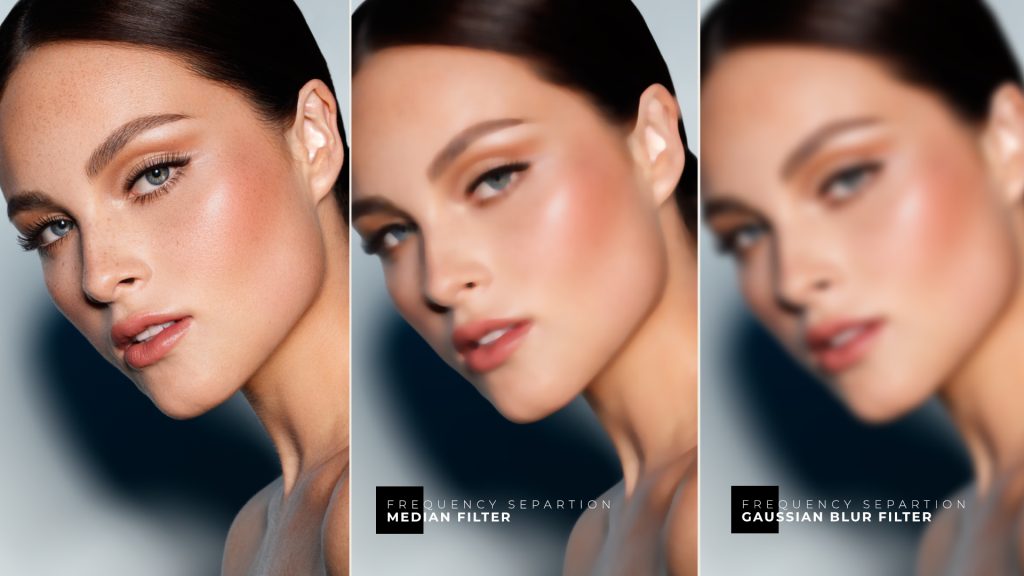
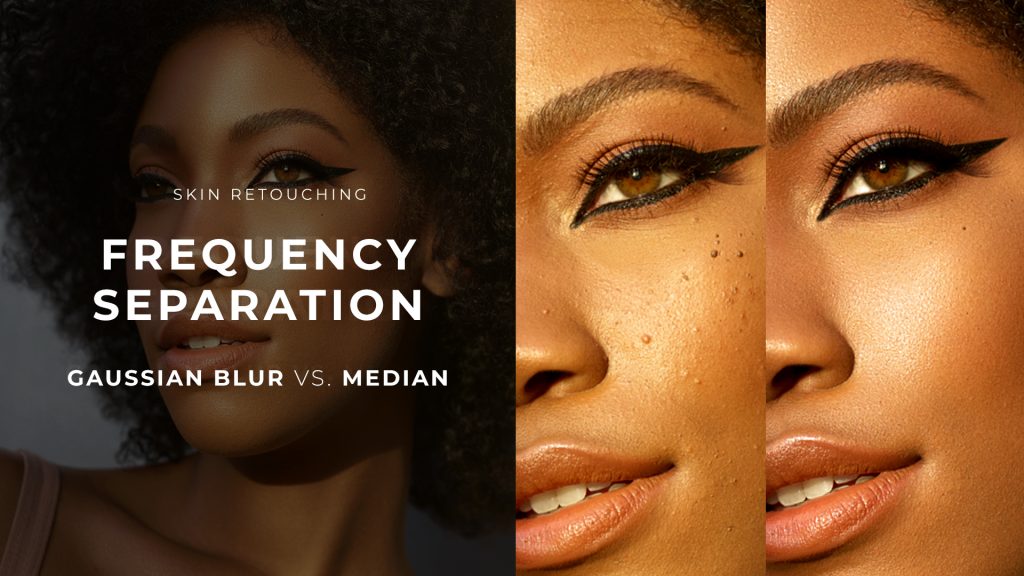
This script is especially helpful for mid-size skin issues. The core of this script is known to photographers and retouchers as the Frequency Separation technique using the Median Filter.⠀⠀⠀⠀
📌 The video below demonstrates the MUA Retouch panel “Resurface” script, which is based on one of the most common retouching techniques called “Frequency Separation”. In this video, we look at the proper use of this script.
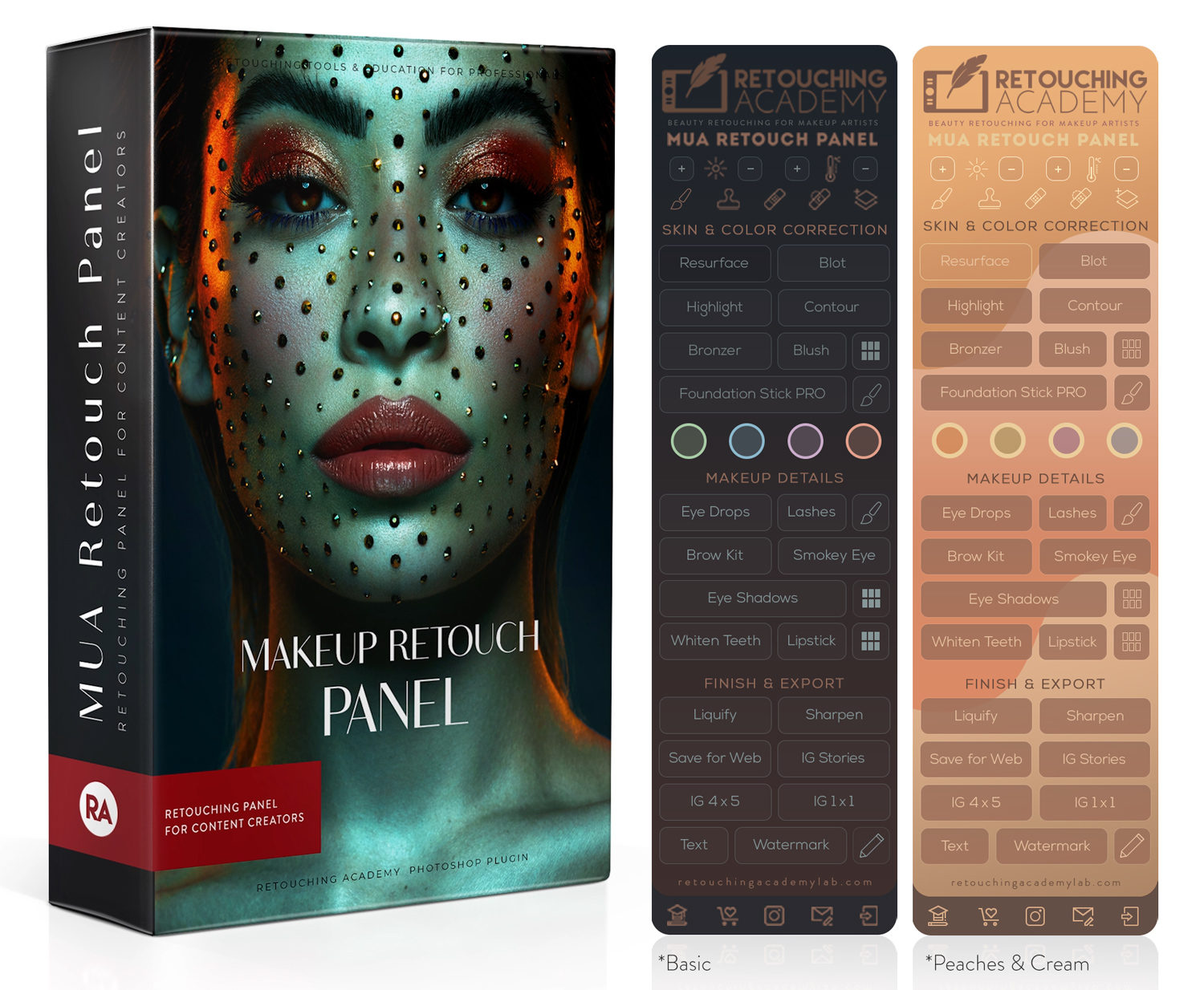
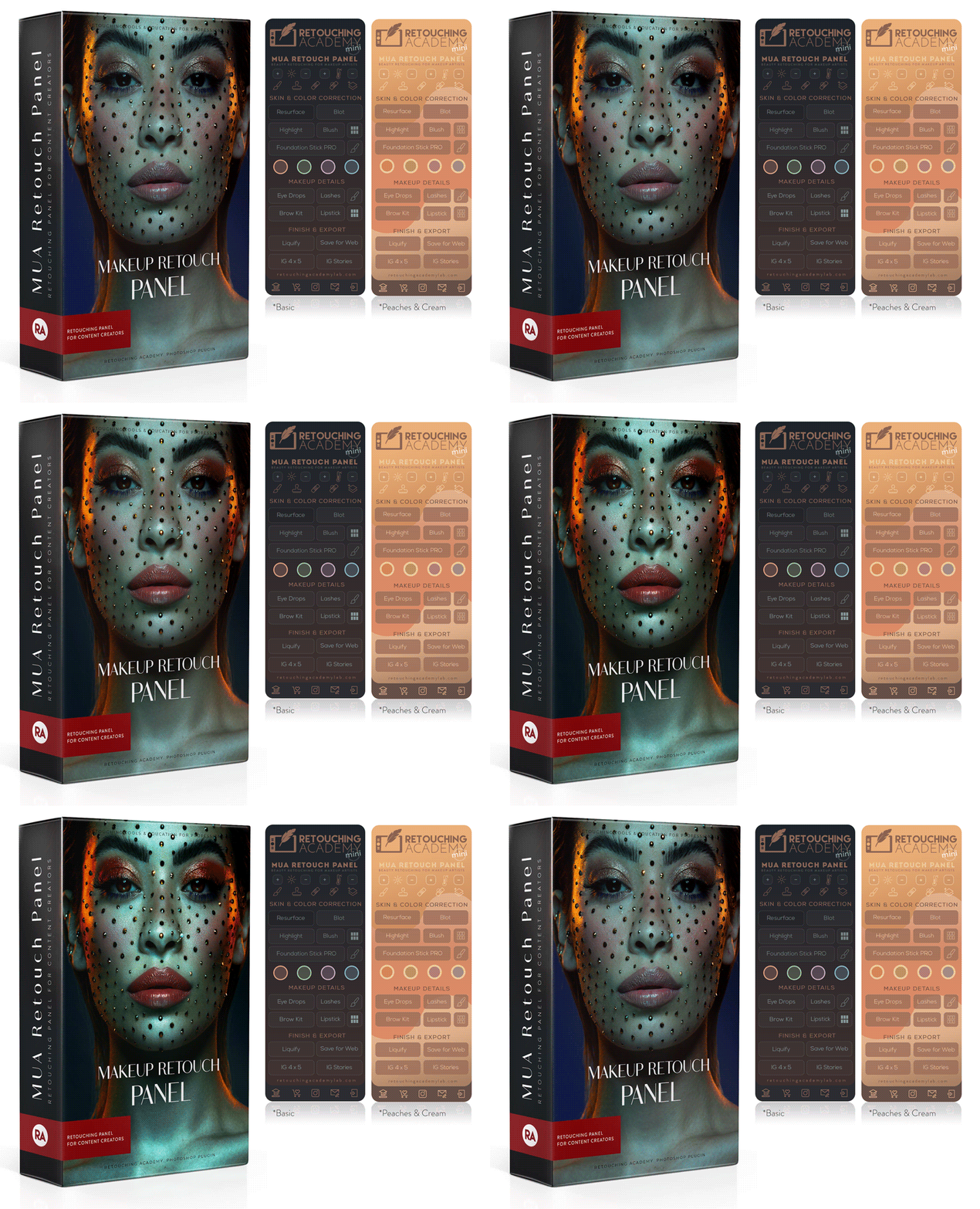
Why Photographers, Retouchers, and Other Visual Artists Love It
✅ Time-Saving Simplicity: Apply corrections in seconds with intuitive controls specifically crafted for beauty retouching.
‼️ Non-Retoucher Terminology: We’ve combined powerful pro-level retouching scripts with a conceptual approach to retouching, and terminology familiar to anyone in the beauty and makeup industry.
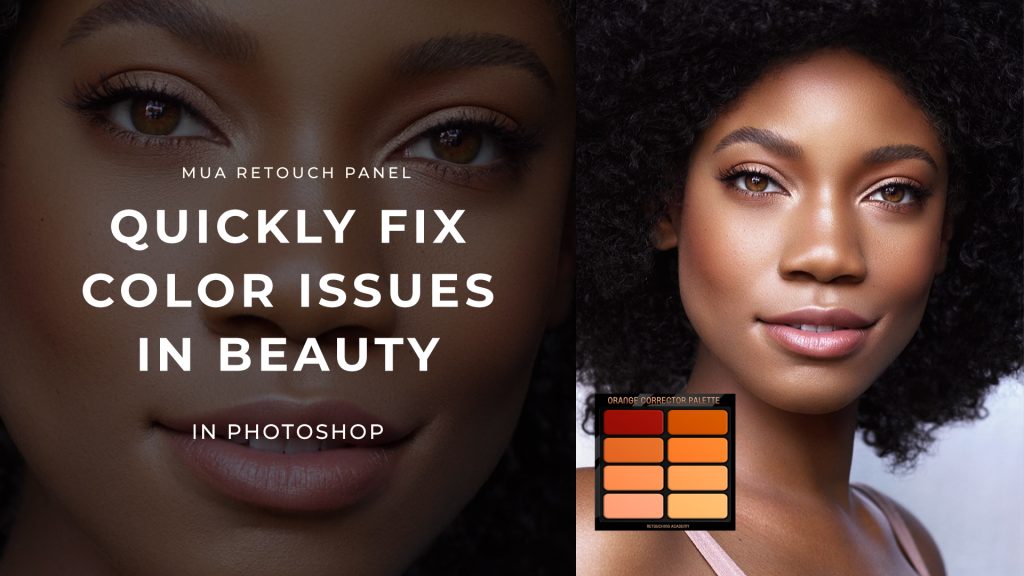
✅ Color Precision: Fine-tune colors using built-in digital palettes for perfect blending and color-matching for any skin tone.
✅ Full Control of Your Results: Easily control the intensity of your adjustments via layer settings and Opacity to achieve polished yet natural results.
✅ Versatile Use: From correcting blemishes to toning down spray tans or even removing unflattering colors from hair, these Correctors are great for a variety of challenges.
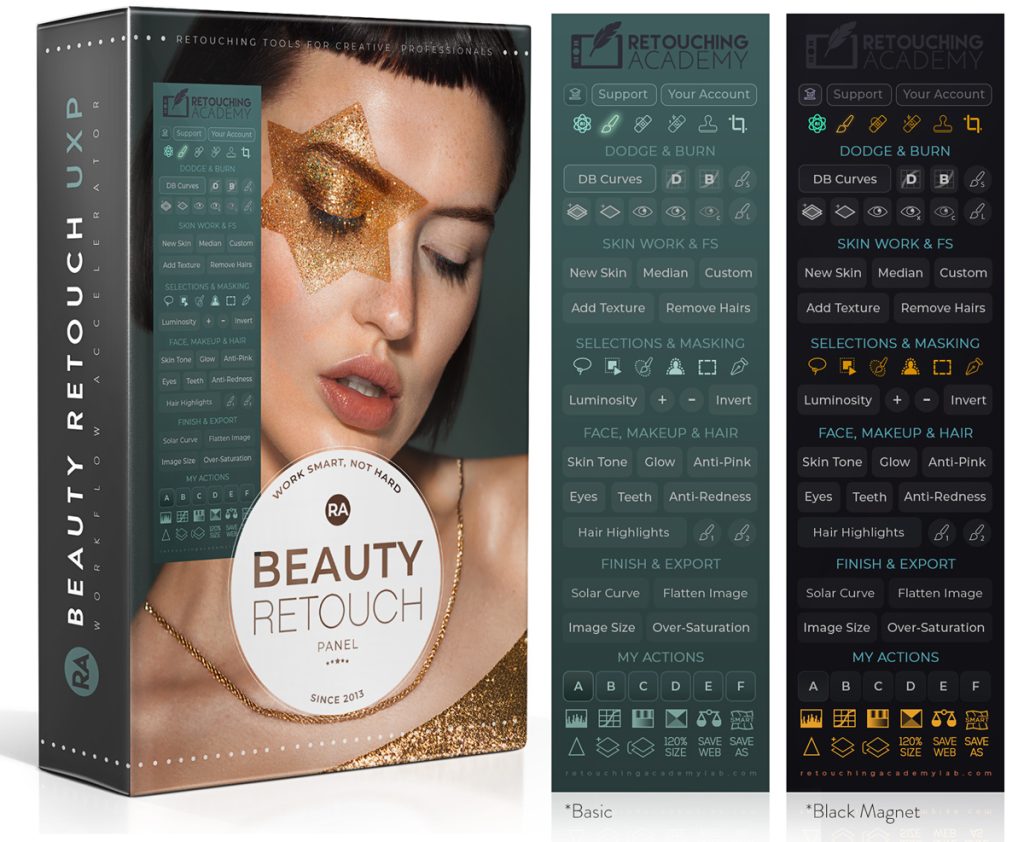
The MUA Retouch Panel truly bridges the gap between artistry and technology, allowing you to tackle any retouching task with speed and precision even if you are NOT a retouching professional.
Watch the full tutorial now: