Every photographer knows the regret of certain choices made during a shoot and the post-production “cost” of fixing styling mistakes and shortcomings.
The new tools on our Beauty Retouch v5 panel will not only help salvage the time and effort invested when mistakes happen, but also take your creativity to an entirely new level!
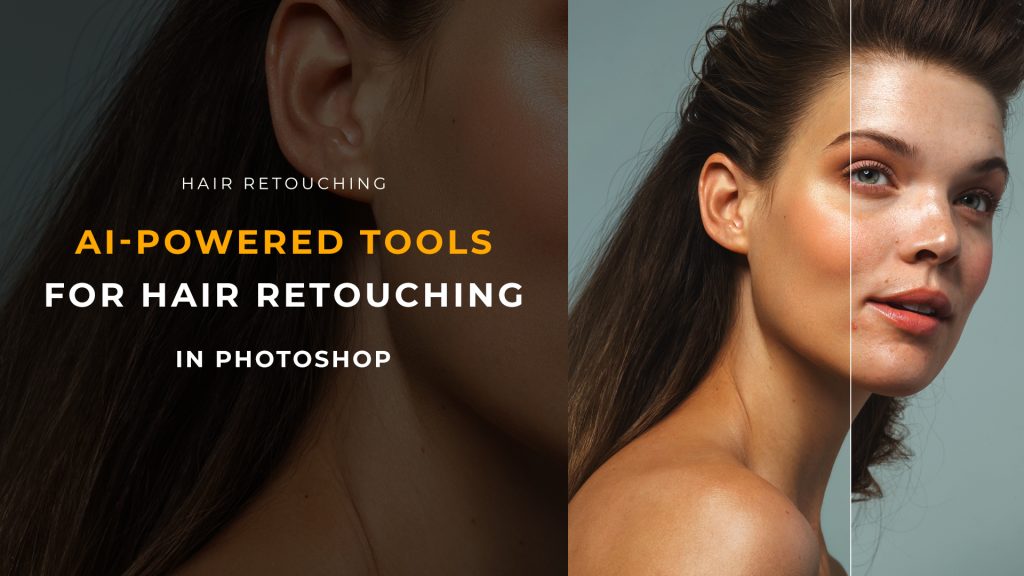
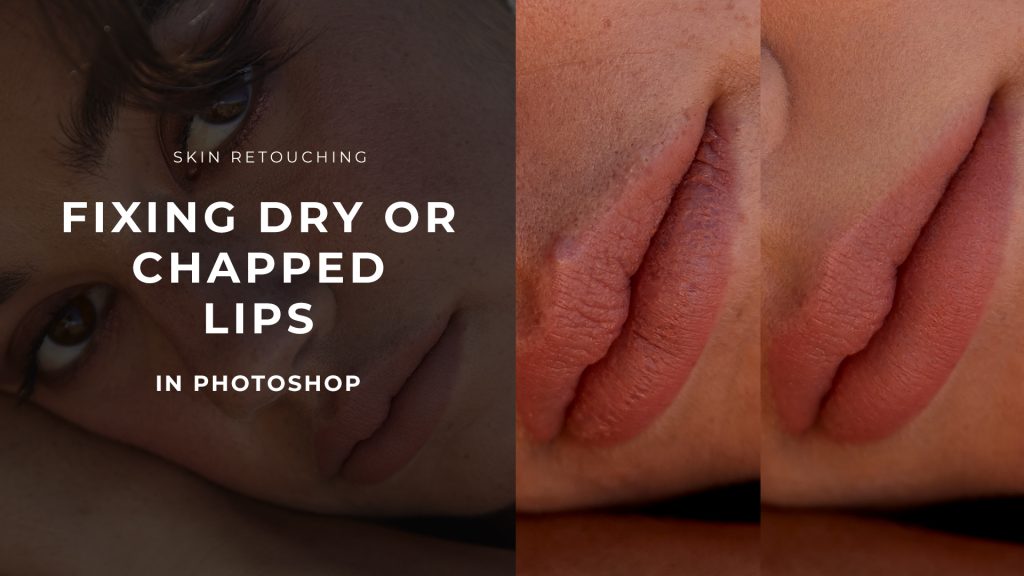
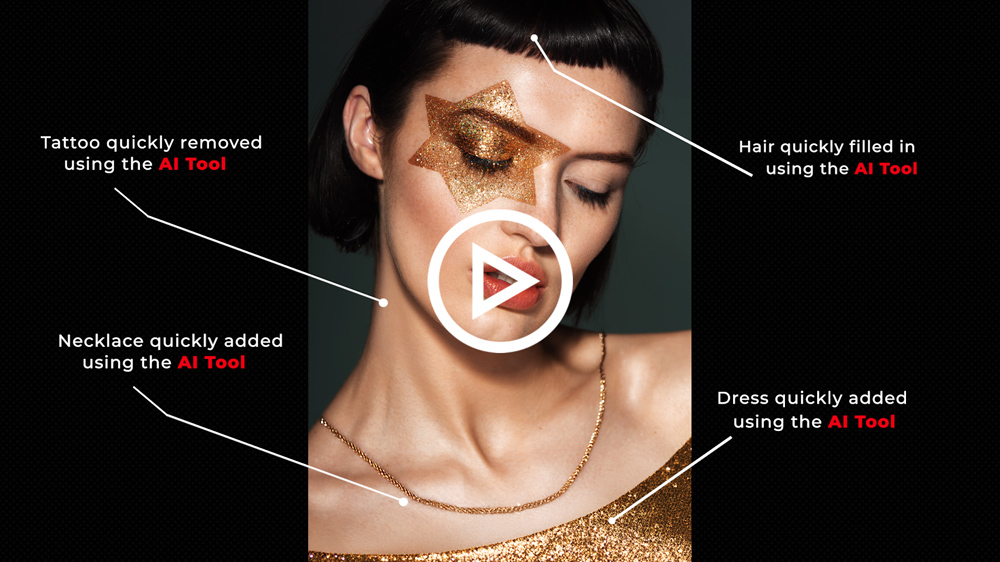
Removing large distractions, filling in hair, adding manicure, and fixing styling errors – everything becomes quick and easy with the new AI Tool. No more hours spent on tedious corrections.
The new powerful Generative Fill feature gives you more creative control and speed, here are some ideas of how you can use it:
Beauty Retouch Panel v5 Release
⚠️ The new version of the Beauty Retouch v5 panel has been successfully released in May 2025. If you are a legacy Beauty Retouch panel user, upgrade your old panel to the UXP version via your Member Account > Upgrade to UXP ⚠️
 Detailed tutorials for each script: Beauty Retouch Video Tutorials.
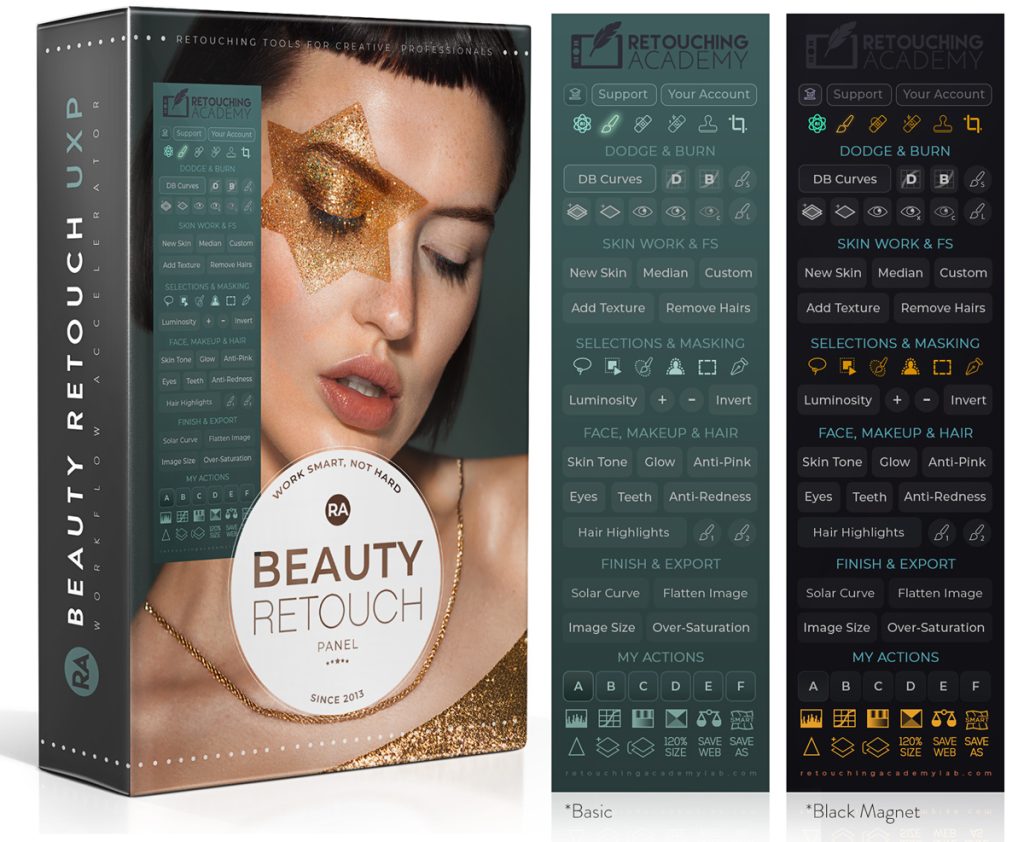
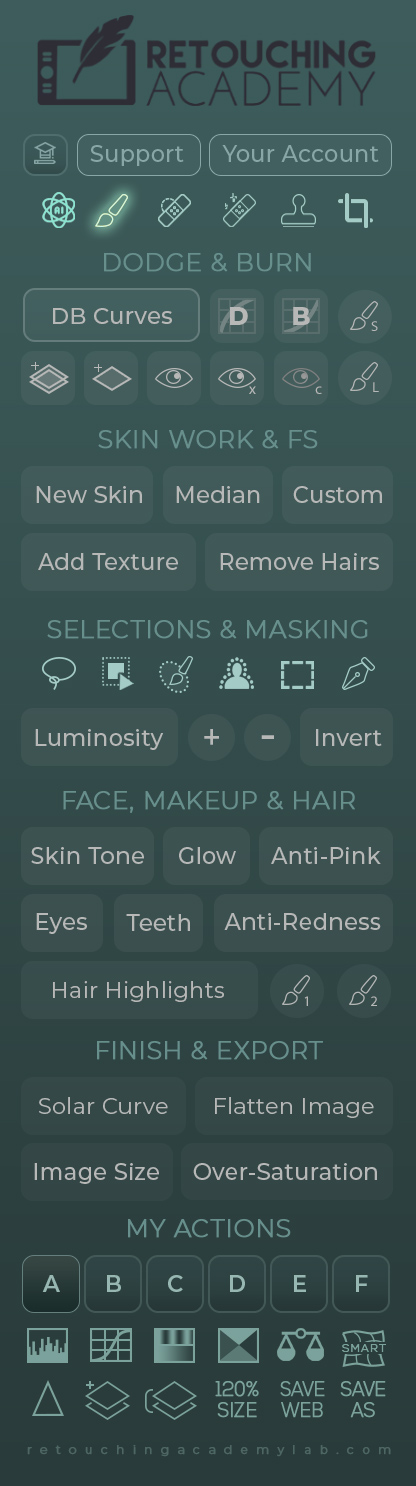
♦️ Tools: These buttons will activate the following tools: our custom AI Tool (watch video tutorial), Brush, Spot Healing Brush, Remove, Clone Stamp, and Crop.
♦️ Dodge & Burn: watch this D&B Section Overview video. The top row buttons will run: the full Curves D&B set up with Visual Aid, Dodge Curve, Burn Curve, and a small D&B Brush (10px).
The bottom row: the D&B Gray Layer Set, a Gray Layer for D&B, Visual Aid (VA) Luminosity check, VA with more contrast, VA Color check, and a larger D&B Brush (300px).
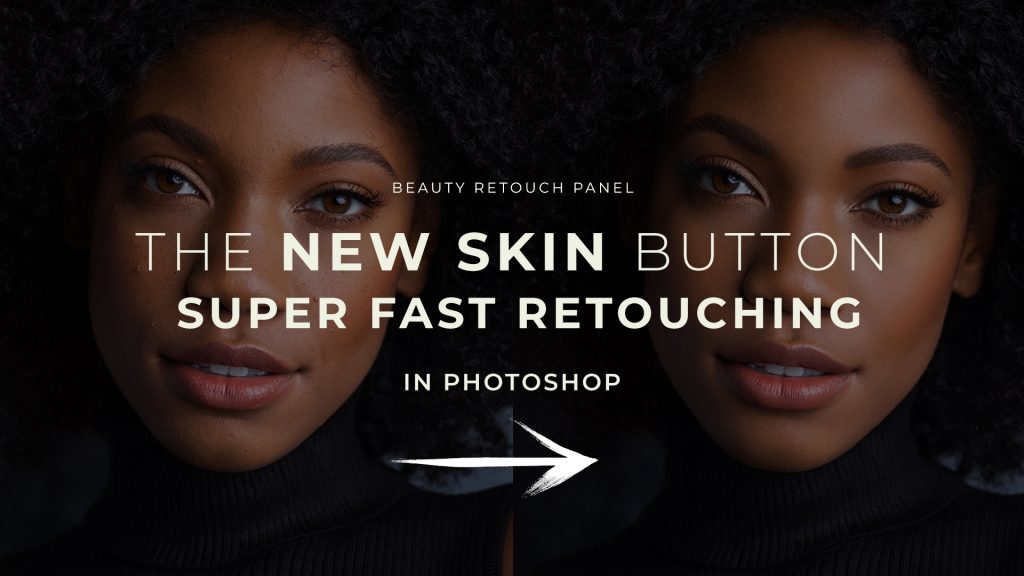
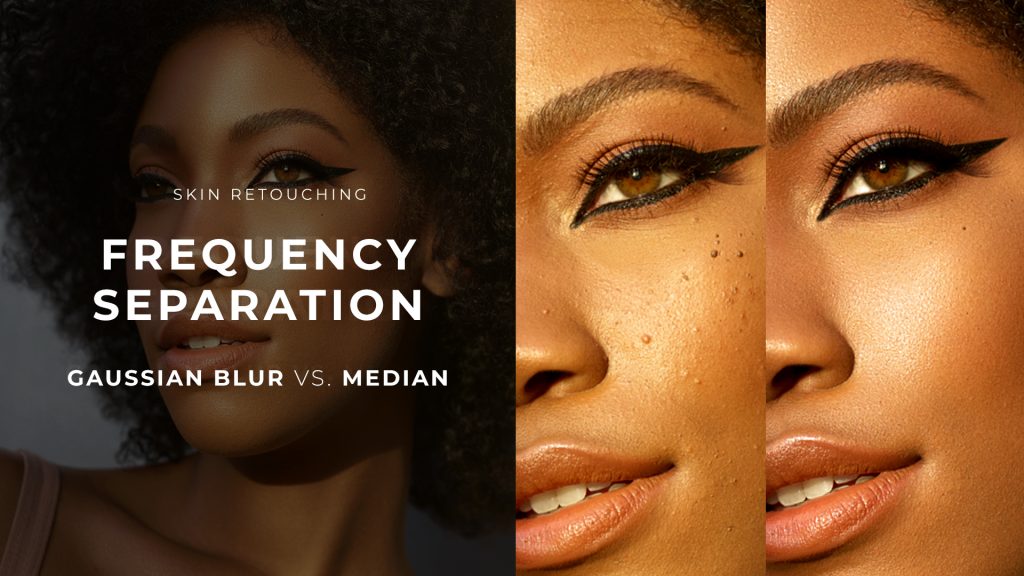
♦️ Skin Work & Frequency Separation (FS): Our New Skin script (watch this video tutorial), Frequency Separation (FS) setup via Median, Custom FS setup, Add Texture script (former Digital Skin Texture), Remove Hairs script (former Remove Body & Facial Hair).
♦️ Selection Tools: These buttons will activate the following tools: Lasso, Object Selection, Selection Brush, Select Subject, Rectangular Marquee, Pen Tool.
♦️ Luminosity Selections: Luminosity selection button (former Basic), Plus button to expand Luminosity-based selection, Minus button to subtract Luminosity-based selection, Invert button to invert the active selection (works independently of the other buttons in this row).
♦️ Face, Makeup & Hair: Streamline the common beauty and portrait retouching tasks with Skin Tone (former Magical Skin Tone), Glow (former Glowing Skin), Anti-Pink, Eyes (former Magic Eyes), Teeth (former Magic Smile), Anti-Redness (the Green Color Corrector from the MUA Retouch panel), Hair Highlights with two custom brushes.
♦️ Finish & Export: Quality control & finishing functions: Solar Curve, Flatten Image, Image Size dialog box, and Over-Saturation.
♦️ My Actions: Add your own custom Actions and trigger them right from the panel. Be sure to watch the tutorial on how to add and activate your actions.
♦️ Other Helpful Buttons: The upper row of buttons will activate: Levels, Curves, Hue/Saturation, Selective Color, Color Balance adjustment layers and Liquify Filter as a Smart Object so you can adjust your re-shaping manipulations.
The bottom row of buttons will run the Sharpen Image script, Add a Blank Layer, Stamp All Layers, increase the size of your image/canvas 120% for best gradual enlargement results, activate the Save For Web and Save As dialog boxes.